Do your iPhone photos look blurry or out of focus? It doesn’t have to be this way! But how do you take stunning photos where your subject is always pin-sharp? In this tutorial, you’ll discover the secrets to taking perfectly focused photos with your iPhone. If you follow these 10 focus tips, you’ll never take a blurry iPhone photo again!

Table Of Contents: 10 Focus Tips For Perfectly Sharp iPhone Photos
Click any title link below to go straight to that section of the article:
1. Tap To Set iPhone Camera Focus
2. Tap & Hold To Lock iPhone Focus
3. Don’t Change Your Distance After Focusing
4. Avoid Getting Too Close To Your Subject
5. Use A Macro Lens For Extreme Close-Ups
6. Use Manual Focus For More Precise Focusing
7. How To Blur Background On iPhone Using Portrait Mode
8. Get Closer To Your Subject For Incredible Background Blur
9. How To Get Everything In Sharp Focus
10. How To Take Sharp Photos In Low Light
1. Tap To Set iPhone Camera Focus
Does your subject sometimes look out of focus or blurred?
Has the iPhone camera focused on the wrong part of the scene?
Getting the focus correct in your photos is a top priority.

Why?
Because our eyes naturally search for the sharpest point in an image.
If the main subject is out of focus, the viewer will become confused about where they should be looking.
But if your subject is in sharp focus, the viewer will be instantly drawn to that part of the scene.

So, how do you tell the camera which part of the scene you want in sharp focus?
Setting iPhone focus is actually very easy.
But it’s one of those hidden iPhone camera features that most people don’t even realize exists!

So here’s the secret to setting the focus point in your iPhone photos:
Open the built-in iPhone Camera app and compose your photo.
Then simply tap on the screen where you want the focus to be. Usually, this would be on your main subject in the foreground.
A yellow box appears to show where the camera is focusing.
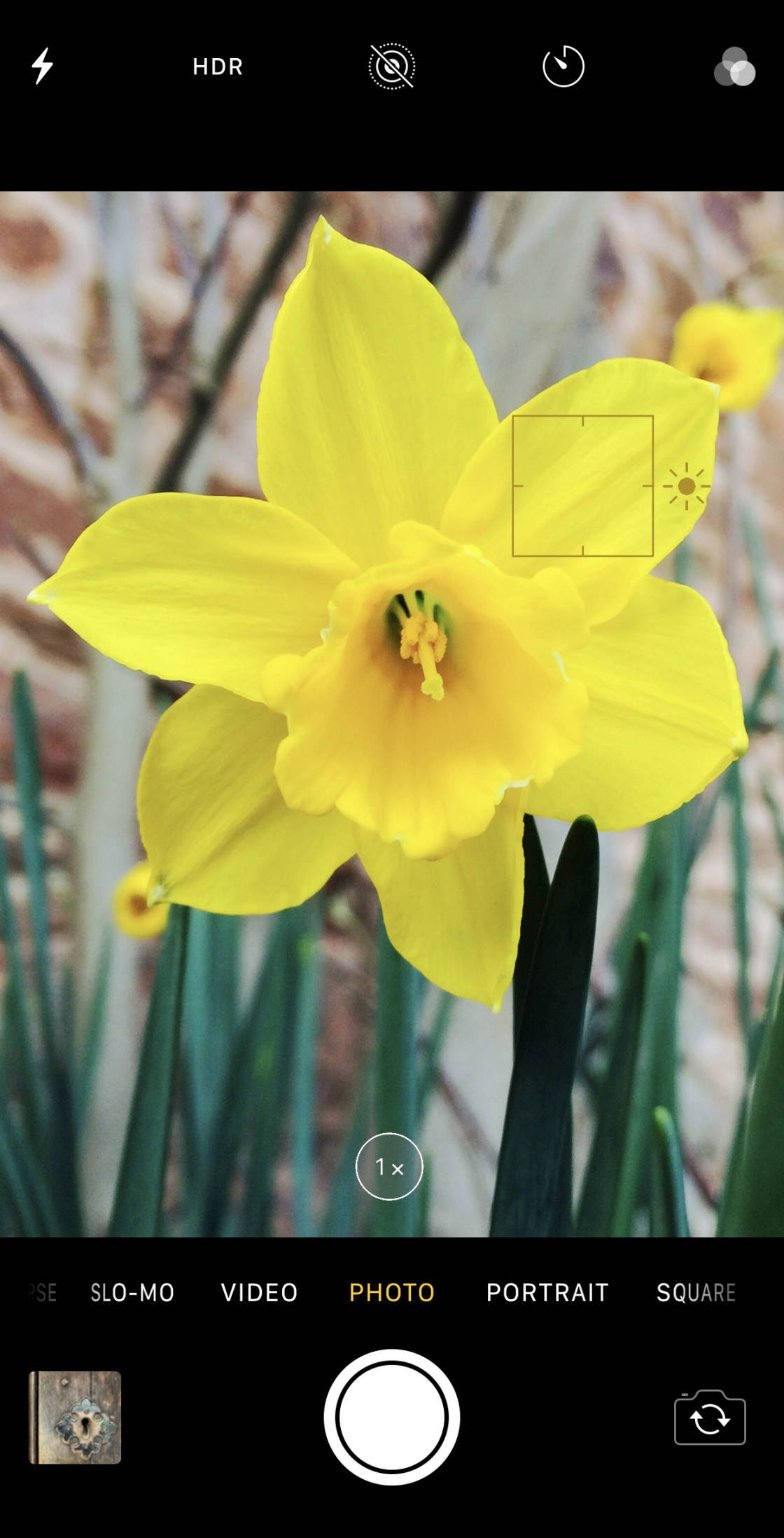
And that’s all there is to it. You’ve just learned how to adjust focus on iPhone!
If you wish, you can tweak the exposure (image brightness) after tapping to set focus.
To adjust exposure, swipe up or down on the screen. Swipe up to make the image brighter. Or swipe down to make it darker.
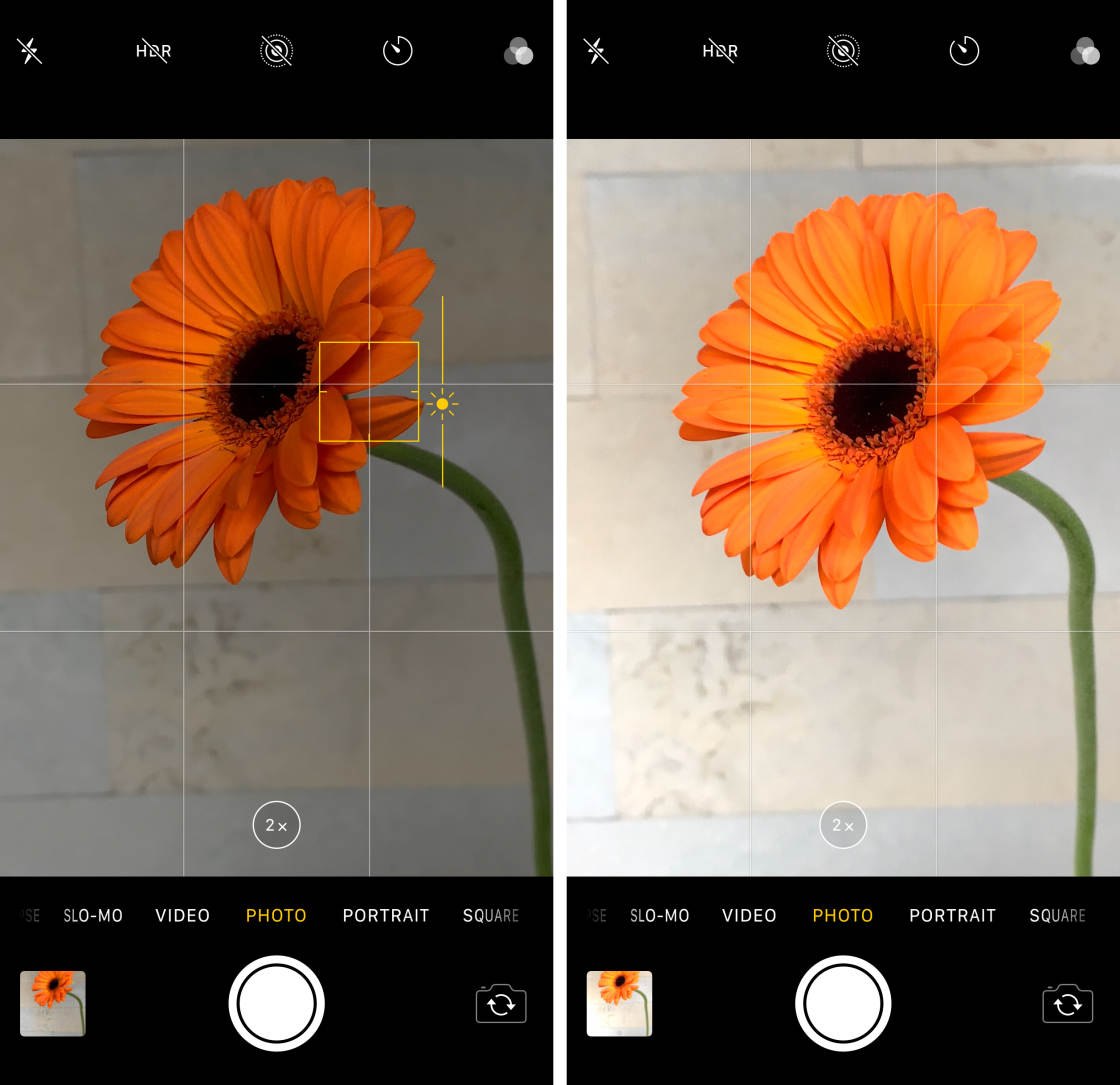
When you’re ready to take your photo, press the shutter button.
Because you tapped to set the iPhone focus, your subject will be perfectly sharp.

In the photo above, I tapped to set focus on the large flower on the left. If I hadn’t done this, the camera might have tried to focus on one of the other flowers in the scene.
So don’t forget:
Whenever you take a photo, think about which part of the scene you want in sharp focus.
Then tap to set the iPhone camera focus on that area.

If you do this, your subject will always be pin-sharp!
2. Tap & Hold To Lock iPhone Focus
Tapping to set focus works well in most situations.
But there are times when this isn’t enough.
One situation is when there’s movement in the scene, such as people walking around in the background.
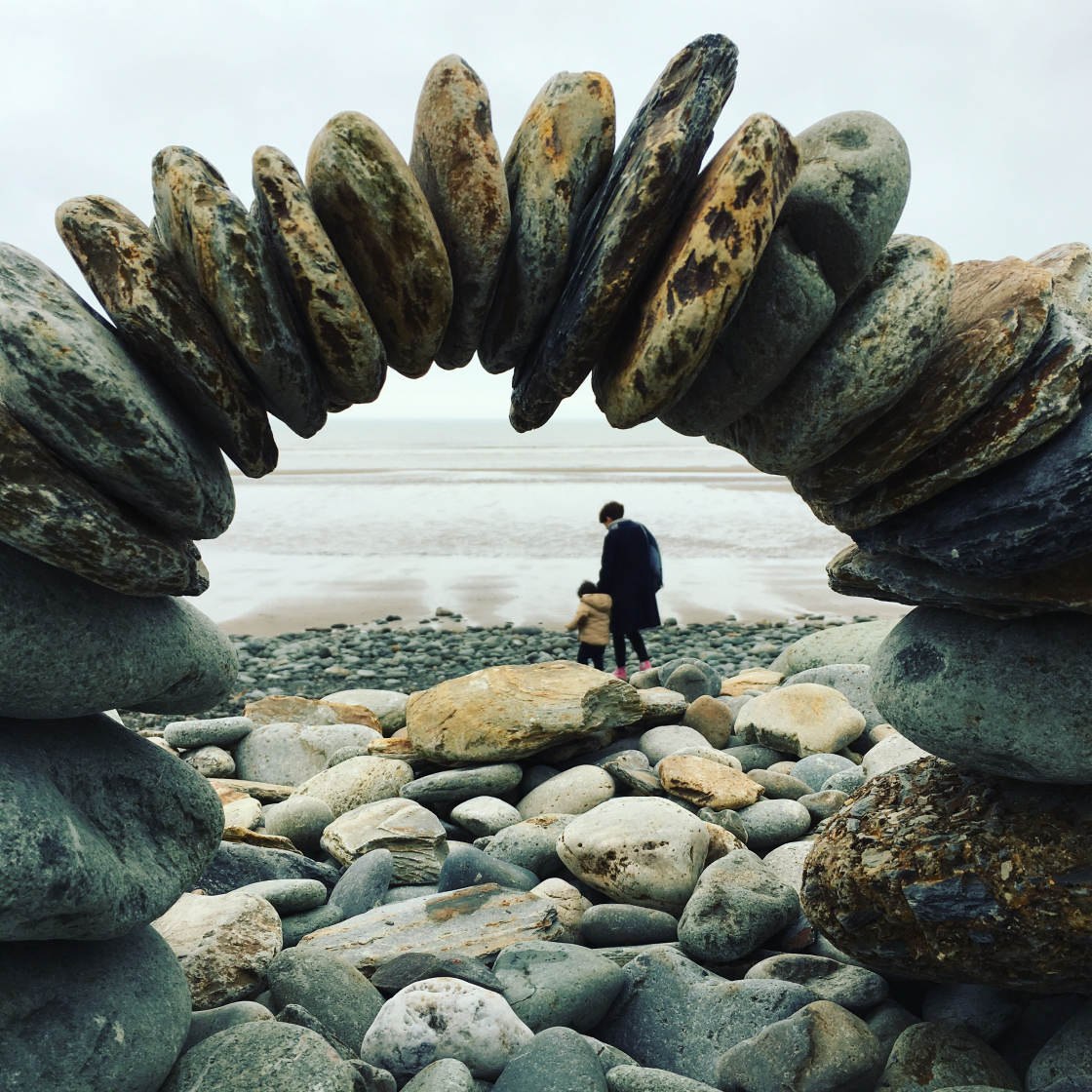
Even if you’ve tapped to set focus on your foreground subject, the camera might re-adjust the focus onto a person walking through the background.
Another situation is when you want to take several similar photos of the subject.
The problem with this is that as soon as you press the shutter button, the camera forgets where you focused in the previous shot. So you’ll have to tap to set focus again for each new photo.
Luckily, the iPhone camera offers an easy way to solve these problems!
You simply need to lock the focus.
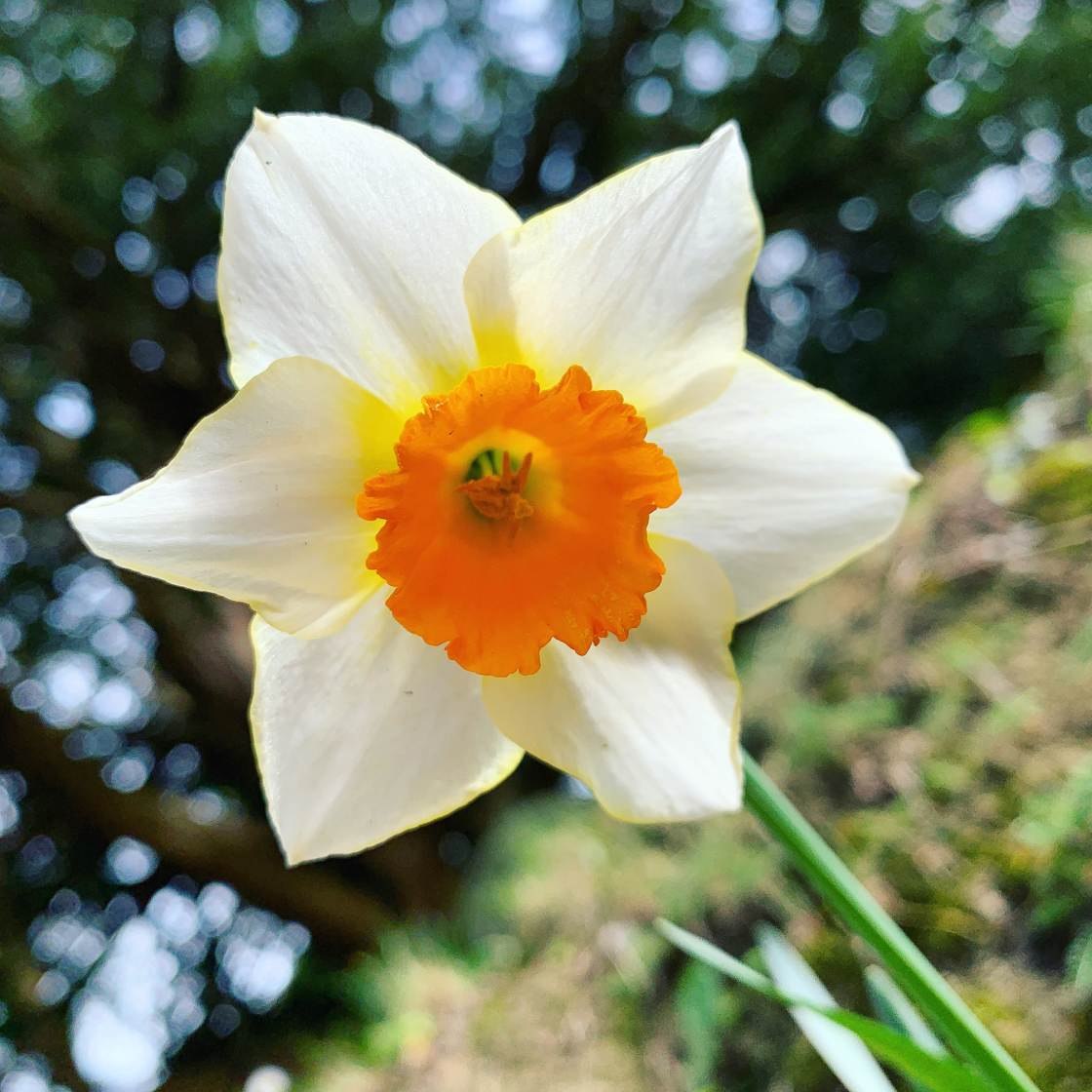
Once focus is locked, you can take as many photos as you want and the focus will remain locked where you set it.
So, how do you lock the iPhone camera focus?
Instead of just tapping where you want to set focus, you need to tap and hold for a couple of seconds.
When you see AE/AF Lock in yellow at the top of the screen, focus is locked.
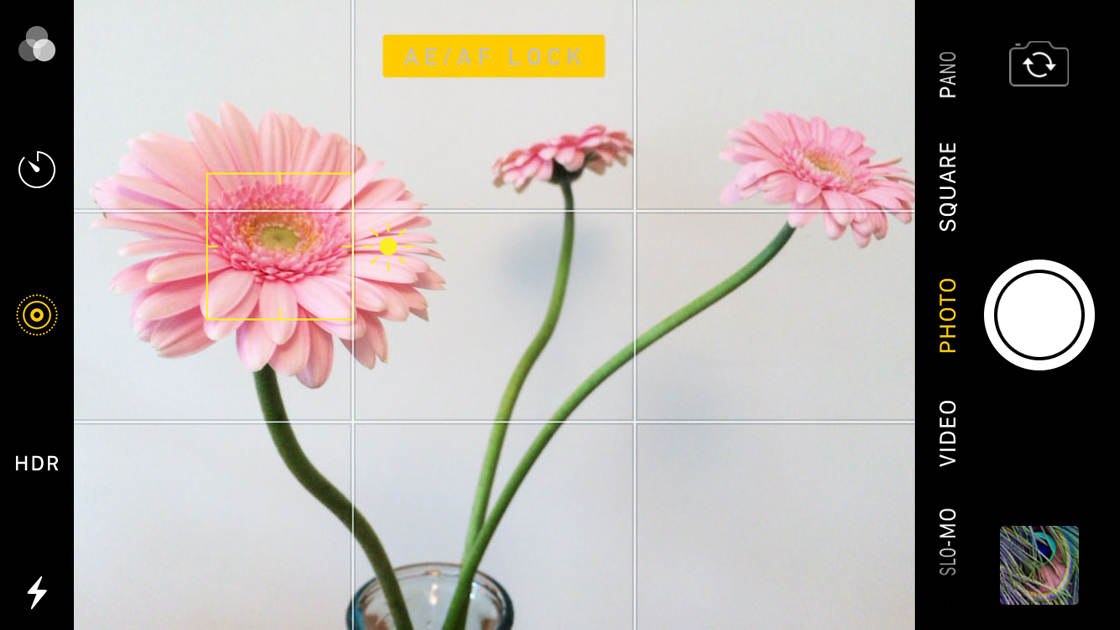
If necessary, adjust exposure by swiping up or down. Then take your picture.
You’ll notice that the yellow AE/AF Lock remains on the screen after you’ve taken your photo.
This means the focus and exposure are still locked on the same settings from the previous shot. So you can go ahead and take more photos without having to set focus and exposure again.
If you want to adjust exposure, you can do so without unlocking the focus.
When you want to unlock focus and exposure, simply tap anywhere on the screen.
As you can see, the iPhone camera focus lock is really useful.
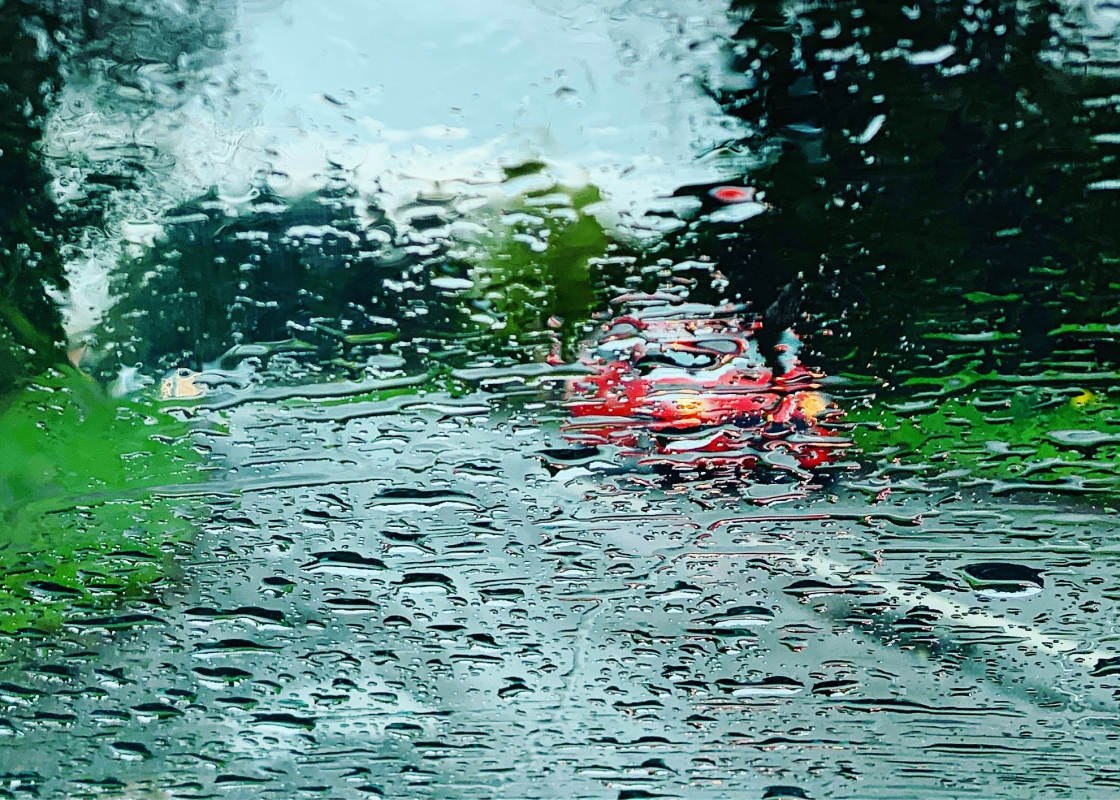
Use it whenever you want to take several shots with the same focus setting. And use it to ensure the focus remains on your subject when there’s movement in the scene.
Locking focus is also great for street photography. Why? Because it allows you to set up the shot in advance.
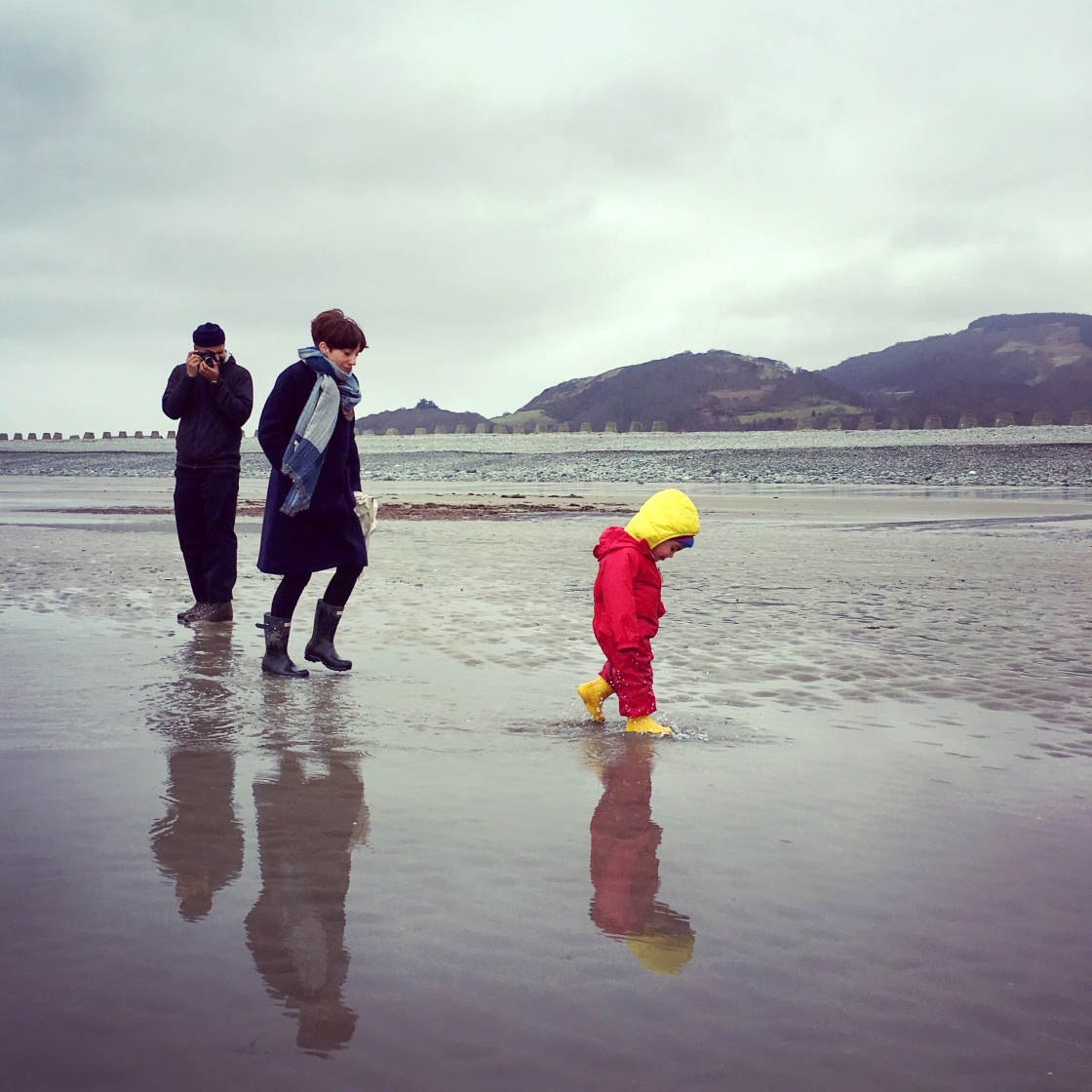
Simply position yourself in a good spot where you know someone will walk into the frame. Lock focus at the point where you think someone will walk past. Adjust exposure if necessary. Then press the shutter as soon as someone walks by.
3. Don’t Change Your Distance After Focusing
Here’s a little-known focus tip for you:
After you’ve set the iPhone camera focus, don’t change the distance between the camera’s lens and your subject.
In other words, don’t move towards or away from your subject.
Why is this important?
Because focusing works by setting the focus point at a particular distance from the camera. Anything in front of or behind this point may appear out of focus.

So, what happens if you set focus at a particular point and then you change the camera-to-subject distance?
Here’s the answer:
The subject that you originally focused on might not appear sharp.
Why? Because it’s no longer at the same distance from the camera.
In the example below, the flowers in the foreground are in sharp focus. That’s because I tapped on that area to set focus there.

But look what happened when I set focus on the foreground flowers and then took a few steps back:

Now everything is out of focus. That’s because I told my iPhone to focus at a certain distance from the camera. But then I changed that distance. And the camera is still trying to focus at the distance I initially set.
As you can see, it’s really important that you don’t change the camera-to-subject distance after setting focus.
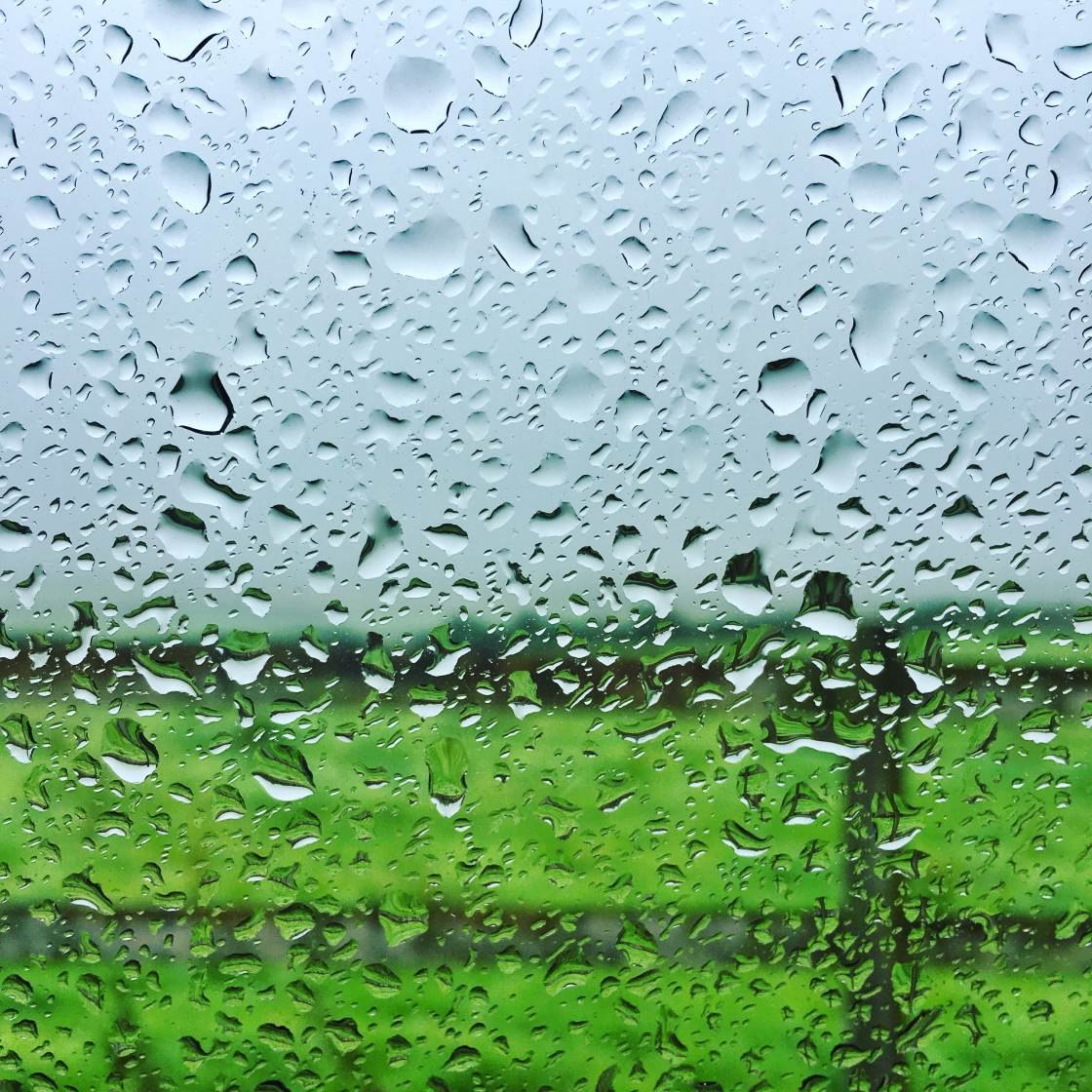
If you need to move closer or further away from your subject, that’s fine. Just make sure you tap again to set focus from your new standpoint.
Don’t forget that even if you stay still, your subject might be moving (a lively child or pet!). If this is the case, you might need to reset the focus if they move closer or further away.

Most people don’t realize that you shouldn’t change your distance after setting focus.
But now you know this secret, you can avoid those blurry iPhone photos when you’re shooting!
7 Hidden iPhone Camera Features
As it turns out, the most important iPhone camera features are completely hidden from regular iPhone users. That's why we created this free video revealing 7 hidden iPhone camera features that every photographer should use. Click here to watch this video.
4. Avoid Getting Too Close To Your Subject
Do all of your close-up photos turn out blurred… even when you tap to set focus?
Tapping to set focus on your subject ensures it will be sharply focused… with one exception:
If the camera lens is too close to the subject, it won’t be able to focus at all.
In the example below, I was holding my iPhone too close to the flower.

No matter how many times I tapped to set focus, the flower was never going to appear sharp. The iPhone camera isn’t capable of focusing at this close distance.
By pulling my iPhone back a couple of inches, I was able to get the flower in focus:

Remember, whenever you change the camera-to-subject distance, always tap to set the focus point again.
Of course, it can be frustrating when photographing close-up subjects like flowers. Often, you can’t get close enough to avoid getting some of the distracting background in the shot.

However, keep in mind that you can always crop away the edges of a photo if necessary.

Yes, your cropped image will have fewer pixels. But if you’re not planning to print your photo at a large size, then it should be fine… as long as you don’t crop too much away.
It’s better to get the subject in focus and then crop the image, rather than get too close and end up with a blurred photo.
That said, there is a way to capture extreme close-up photos with your iPhone!
Read on to find out how to shoot sharply-focused pictures at very close distances…
5. Use A Macro Lens For Extreme Close-Ups
You’ve just learned that you can’t take extreme close-up photos with your iPhone.
So how do people shoot those incredible iPhone macro photos where the subject is very close?

They use an add-on macro lens!
A macro lens, such as the Olloclip Macro, allows you to focus at very close distances.
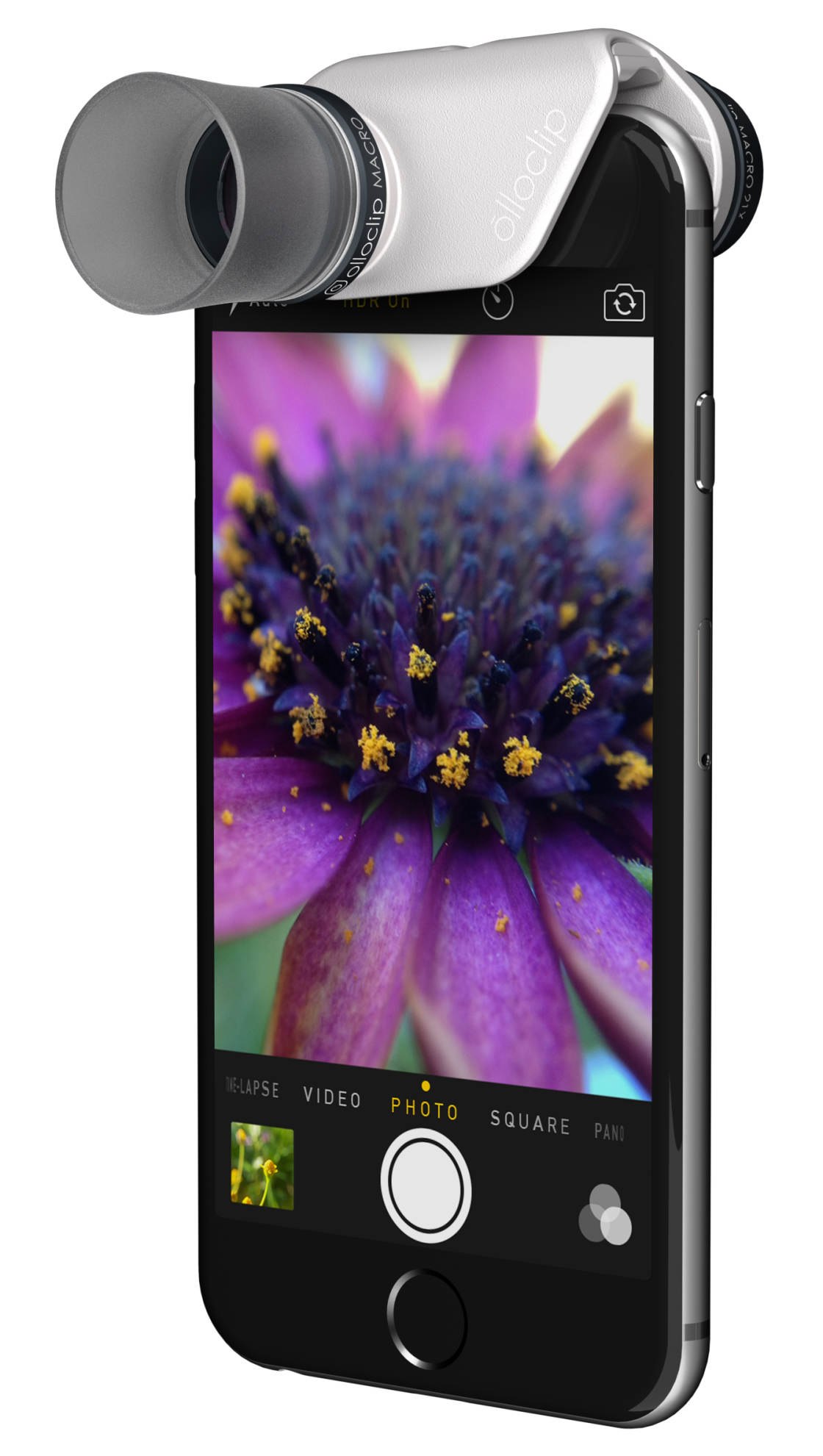
Getting the lens extremely close to your subject allows you to capture detail that’s often invisible to the naked eye.

However, when you use a macro lens, you have to be very accurate when tapping to set focus.
Why?
Because shooting extreme close-ups results in a very shallow depth of field. This means that only a small portion of the image will be in focus, while the rest appears blurred.
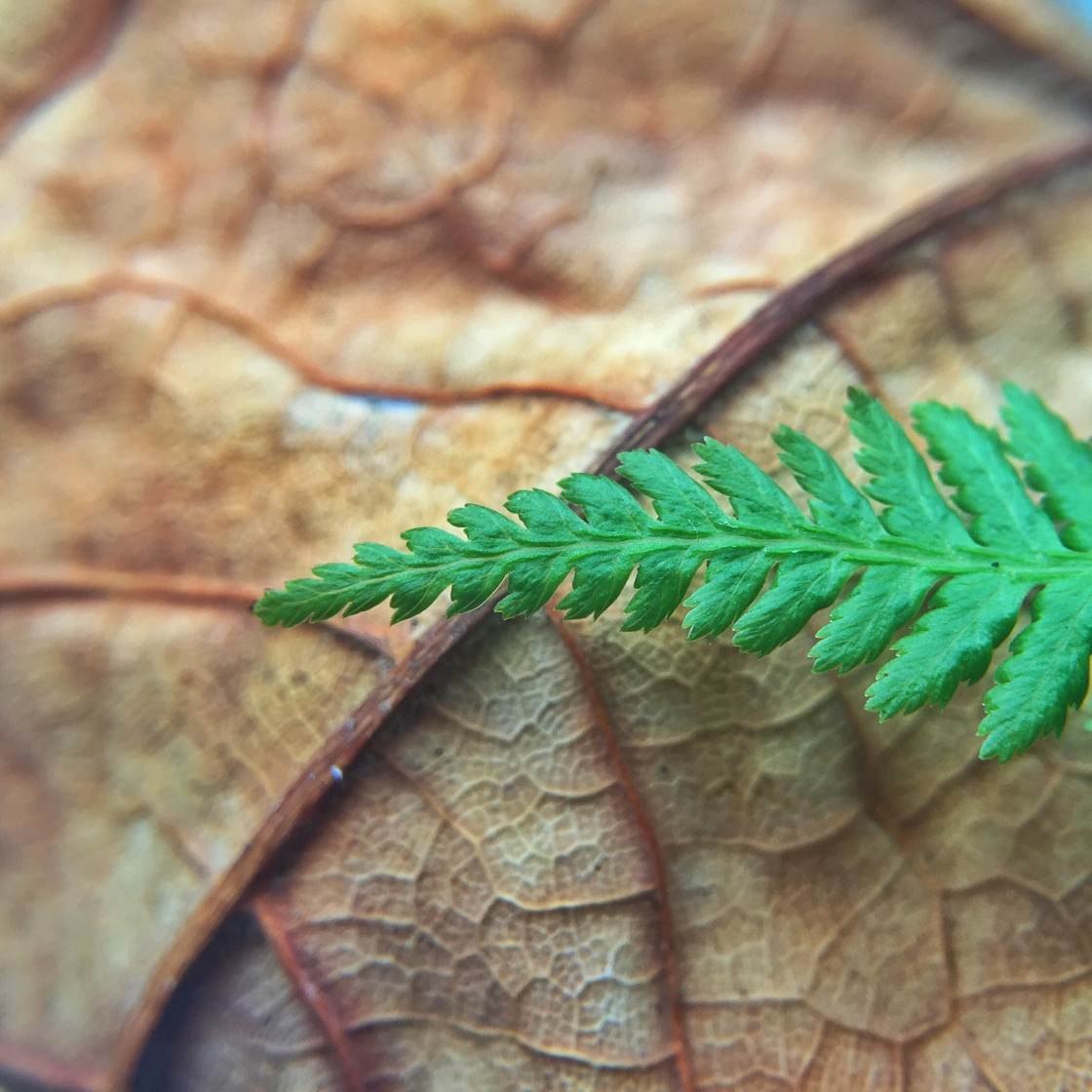
You may have to take a few shots and tap on different areas of the scene before you get the focus perfect.
It’s also essential that you don’t change the distance between the lens and the subject. The tiniest change in distance will mean you don’t get what you want in focus.
For this reason, it’s best to use an iPhone tripod and iPhone tripod mount when using a macro lens.

It can take a bit of practice to capture sharply focused macro photos. But the results are definitely worth it!
6. Use Manual Focus For More Precise Focusing
Sometimes, you might not be able to get the camera to focus on the exact spot you want.
This is especially true with close-up and macro photography.

Tapping to set focus doesn’t always work when you need to be extremely precise.
So, what can you do to focus more accurately?

You can use a third-party camera app to focus manually.
Camera+ 2 is one of the best iPhone camera apps that offers full manual control over your camera settings.
Its manual focus feature lets you use a slider to adjust the focus point very gradually.
To use manual focus in Camera+ 2, tap the Auto Focus icon (circled below).
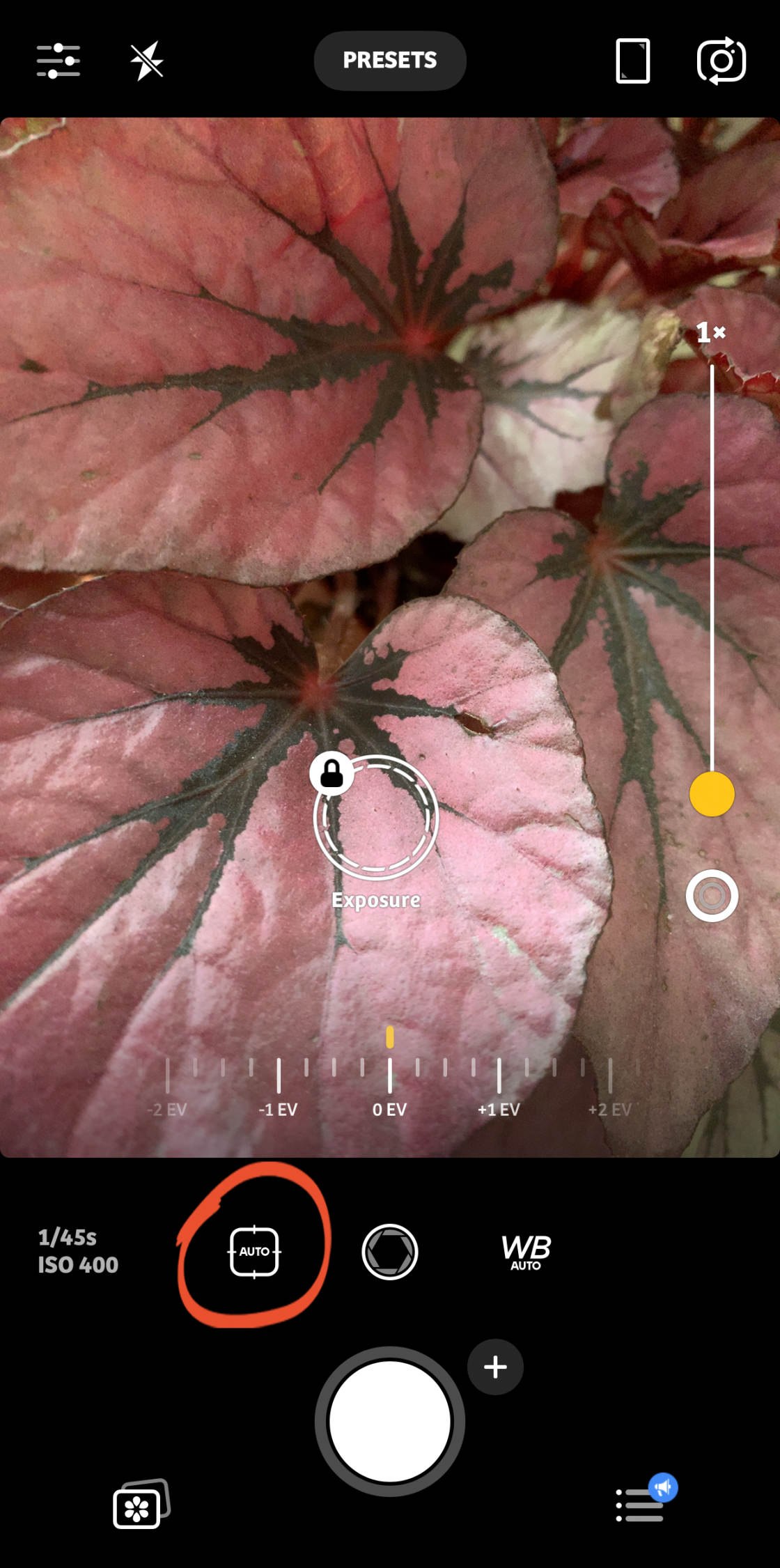
The Manual Focus slider will appear at the bottom of the viewfinder.
Slowly drag the slider left or right. As you do this, notice how different parts of the scene come into focus.
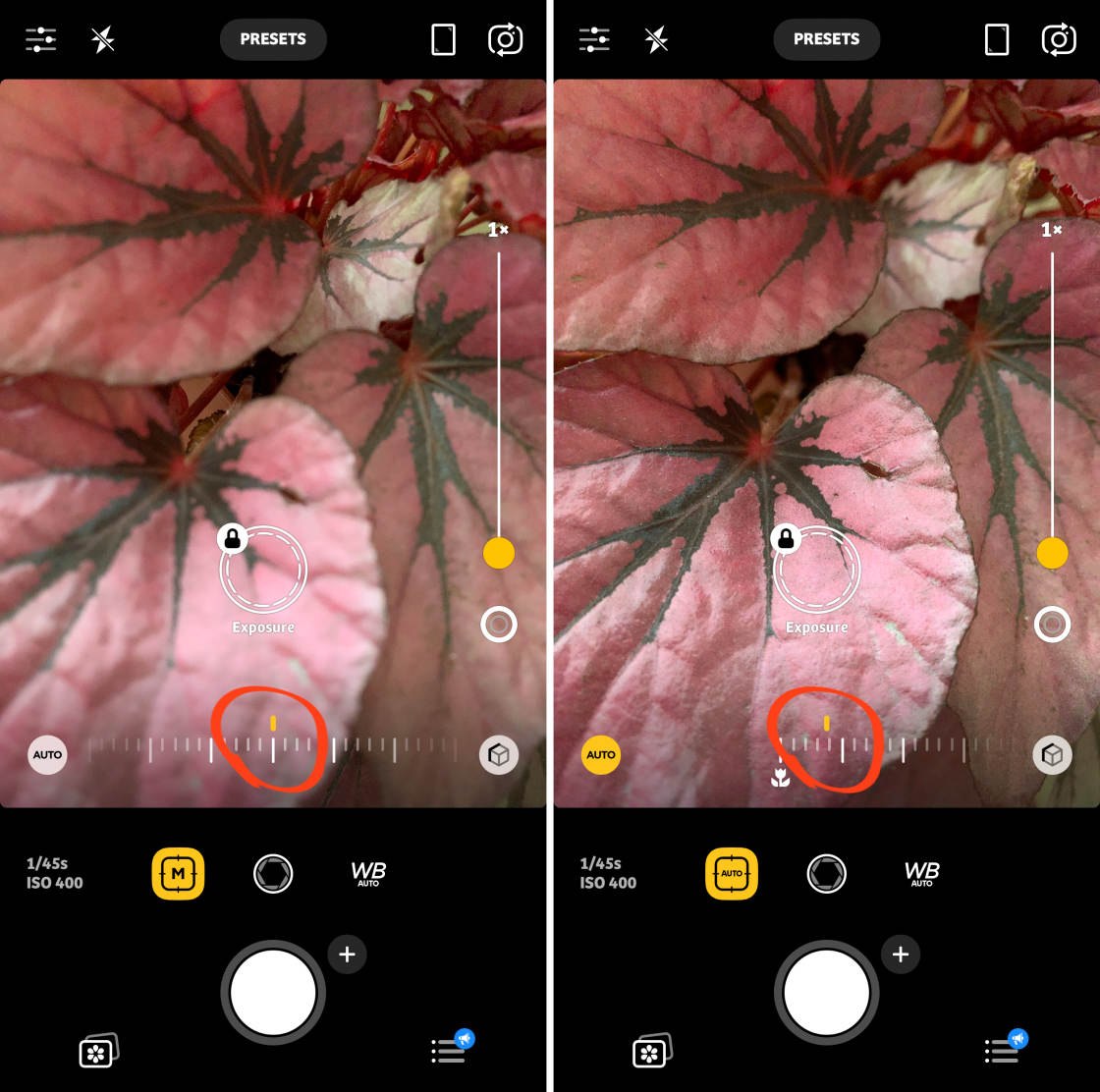
When the correct part of the scene is in focus, press the shutter button to take a photo.
To switch back to autofocus, tap the Auto button to the left of the focus slider.
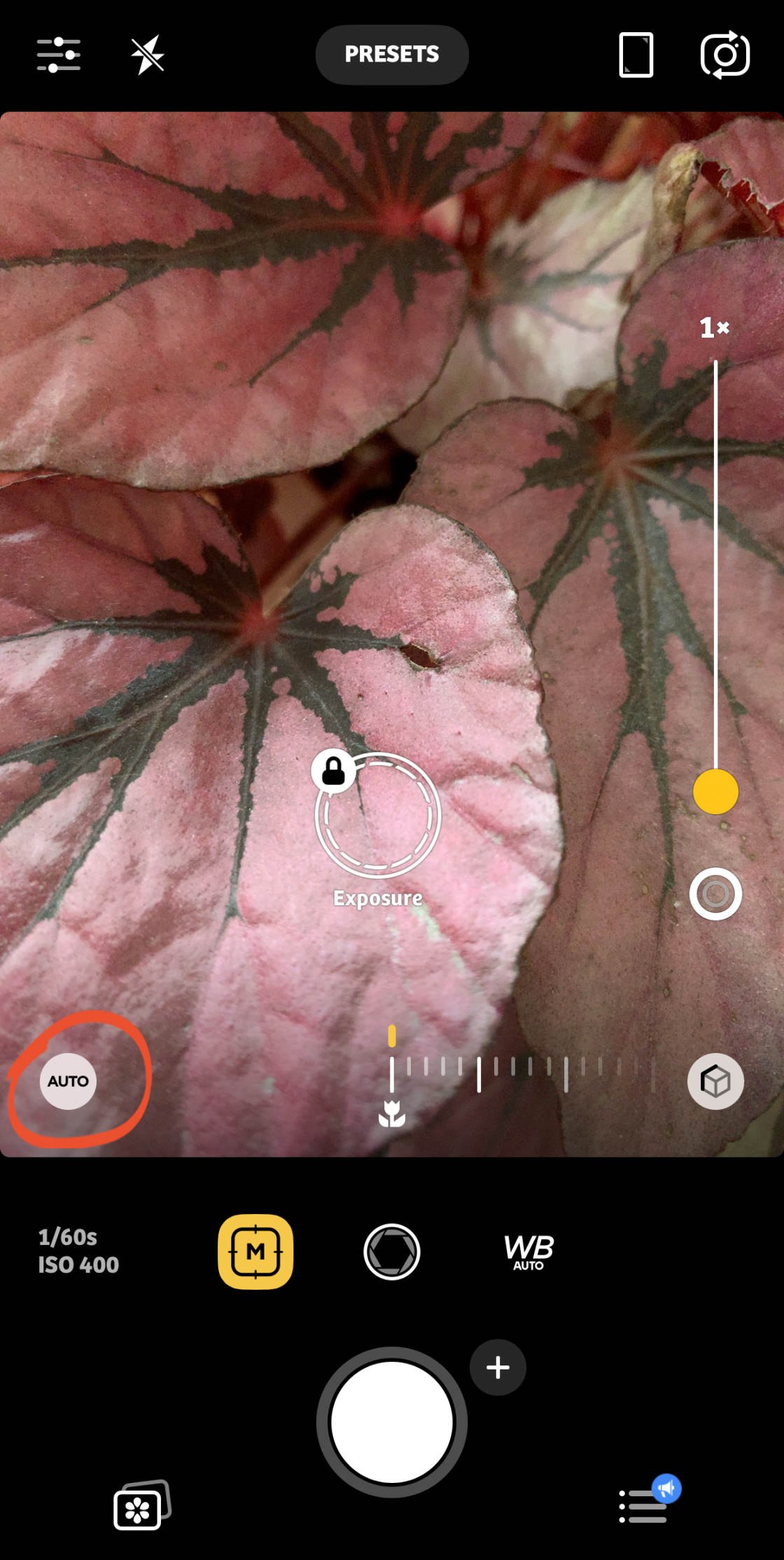
Manual focus isn’t something you’ll want to use for every photo.
But it’s a great backup option when the tap-to-focus technique isn’t focusing precisely enough.
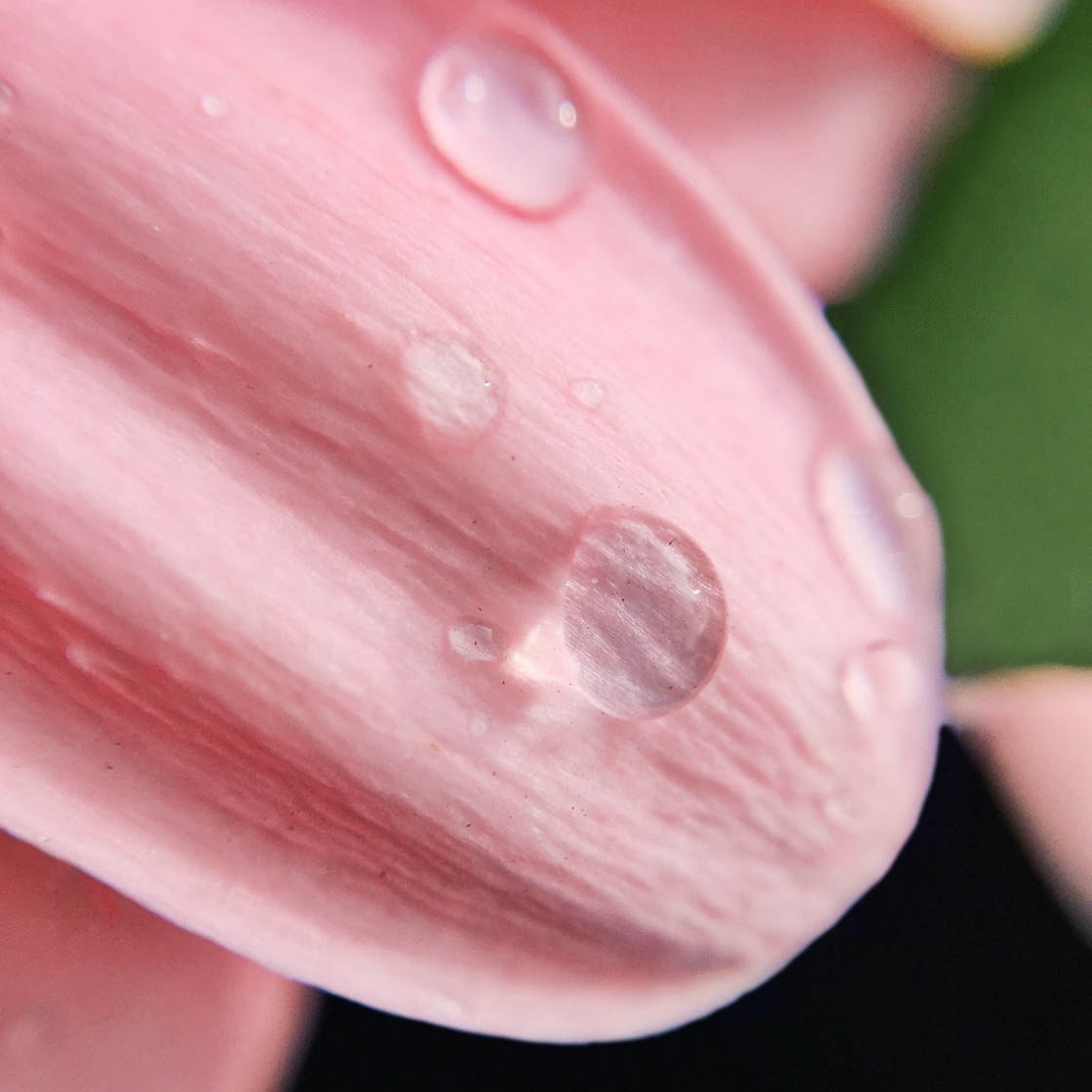
Knowing how to focus iPhone camera accurately can make all the difference to your close-up shots.
7. How To Blur Background On iPhone Using Portrait Mode
Getting your subject’s face in sharp focus is critical in portrait photography.
But how do you create those beautiful blurry backgrounds in your iPhone portrait photos?

You use Portrait mode!
This shooting mode keeps your subject’s face in sharp focus. At the same time, it uses depth-effect software to create a dreamy blurred background.
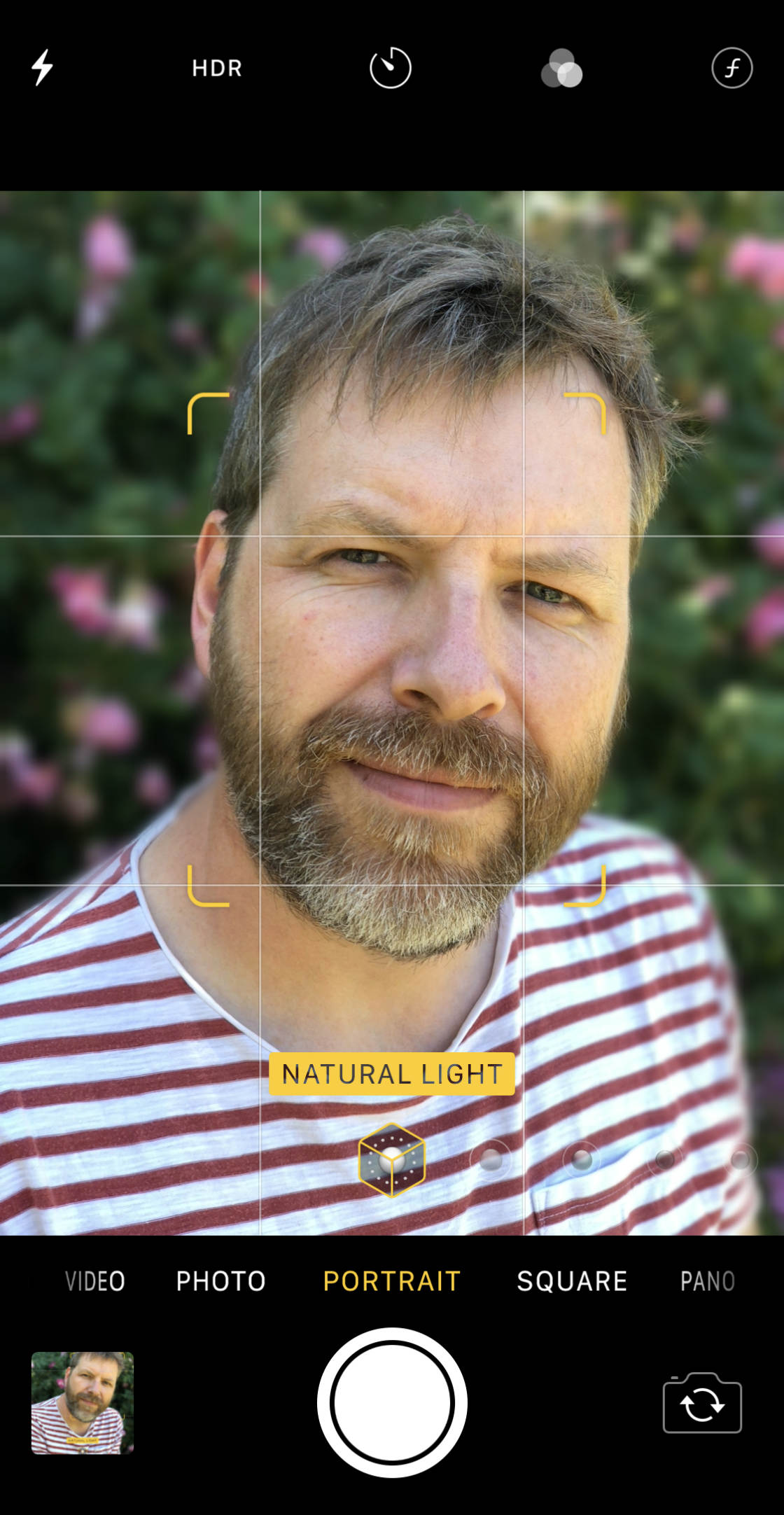
Portrait mode is available in the built-in iPhone Camera app on the following iPhones:
iPhone XS, iPhone XS Max, iPhone XR, iPhone X, iPhone 8 Plus, and iPhone 7 Plus.
How do you use Portrait mode to blur the background in your photos?
Open the Camera app and select Portrait at the bottom of the screen.
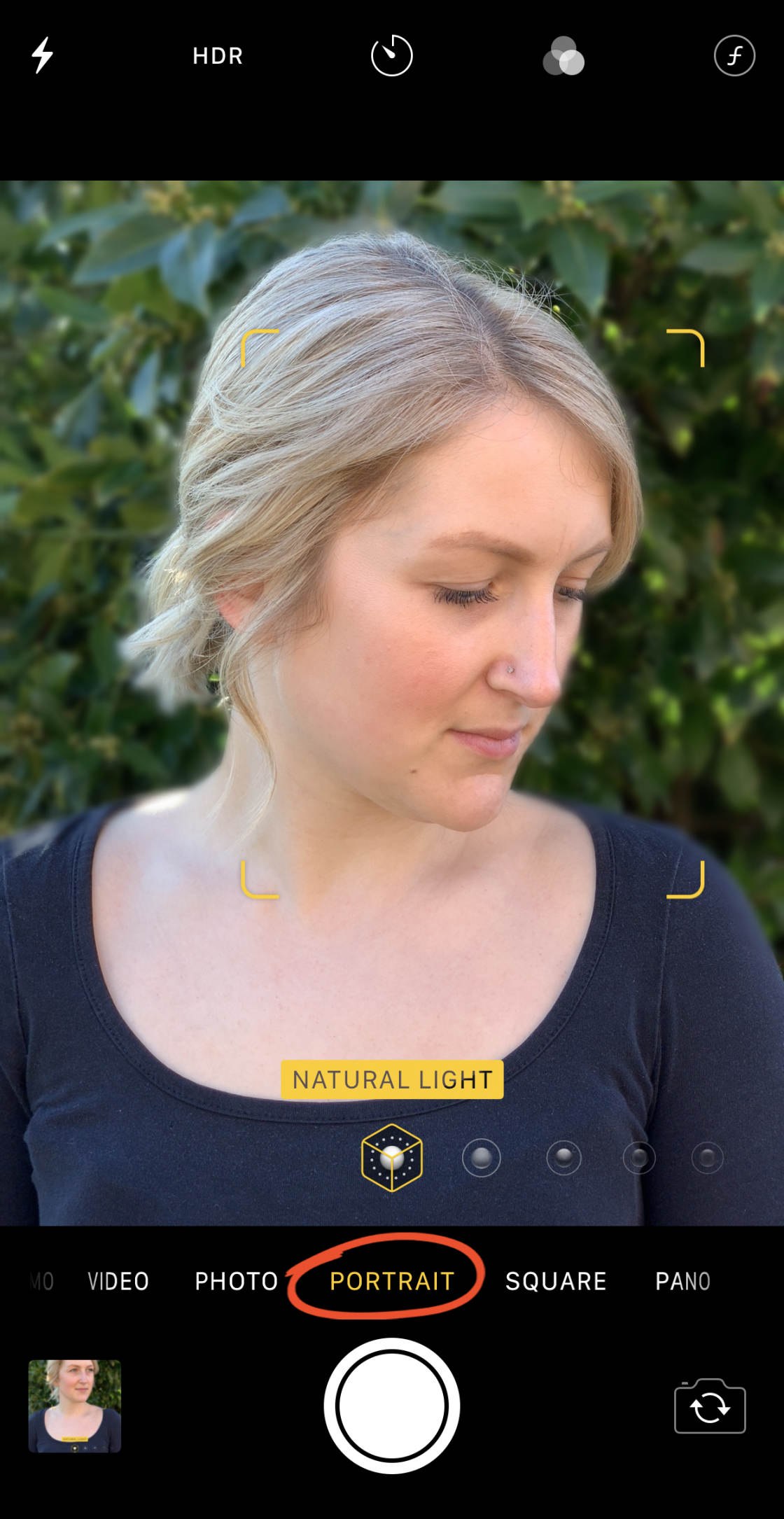
Compose your shot, making sure the camera is between two and eight feet from the subject.
The camera should automatically focus on the subject’s face. You’ll see a yellow focus box to indicate where it’s focusing.
If you’d prefer to set the focus point yourself, you can tap on the screen.
When the camera has focused, you’ll see Natural Light in yellow at the bottom of the screen.
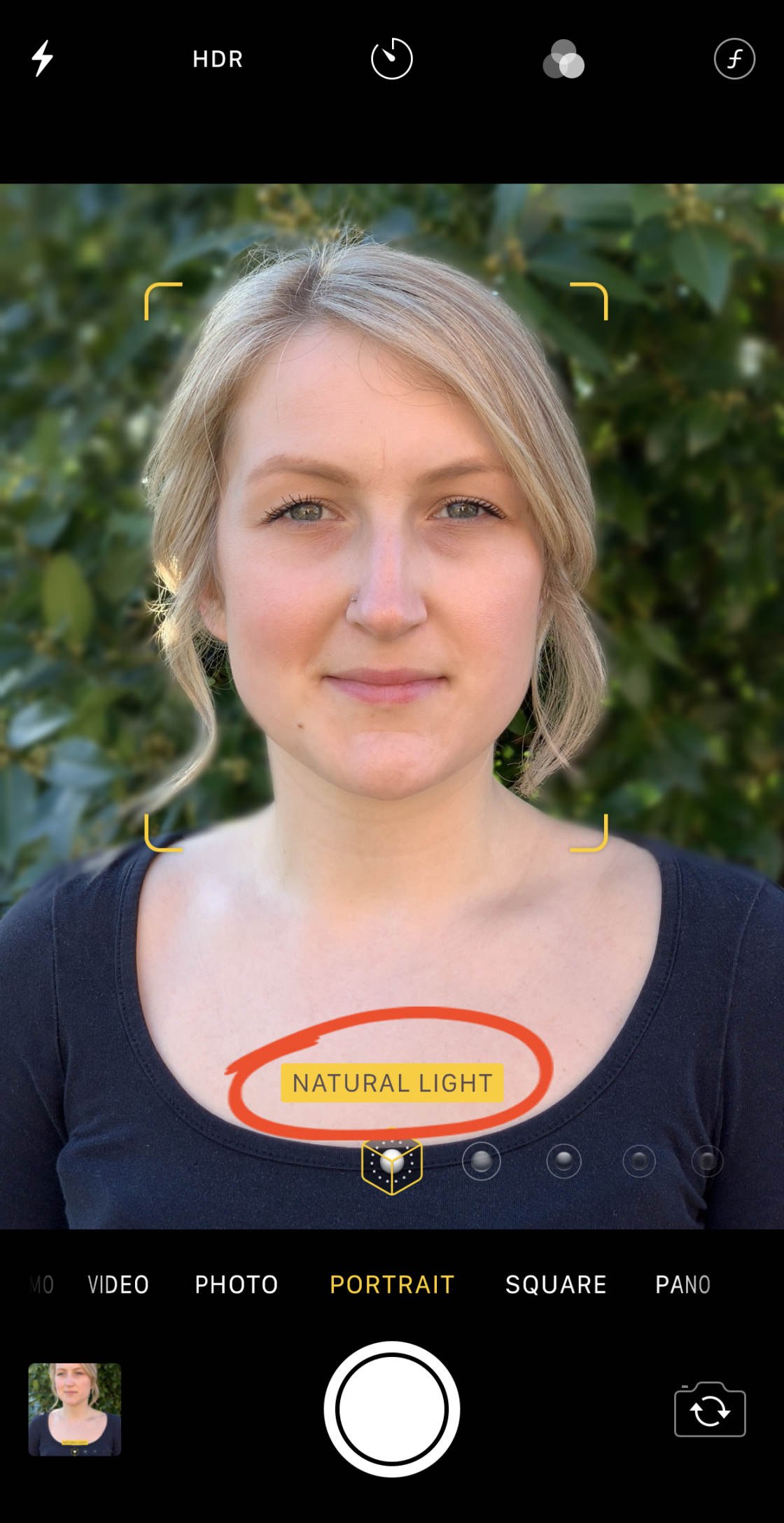
Now simply press the shutter button to take a beautiful portrait photo.
Your subject should appear sharply focused, while the background is blurred out.

If you have one of the latest iPhones (iPhone XS, XS Max, or XR) you can even adjust the strength of the background blur… after you’ve taken the photo.
Just open your portrait photo in the Photos app and tap Edit.
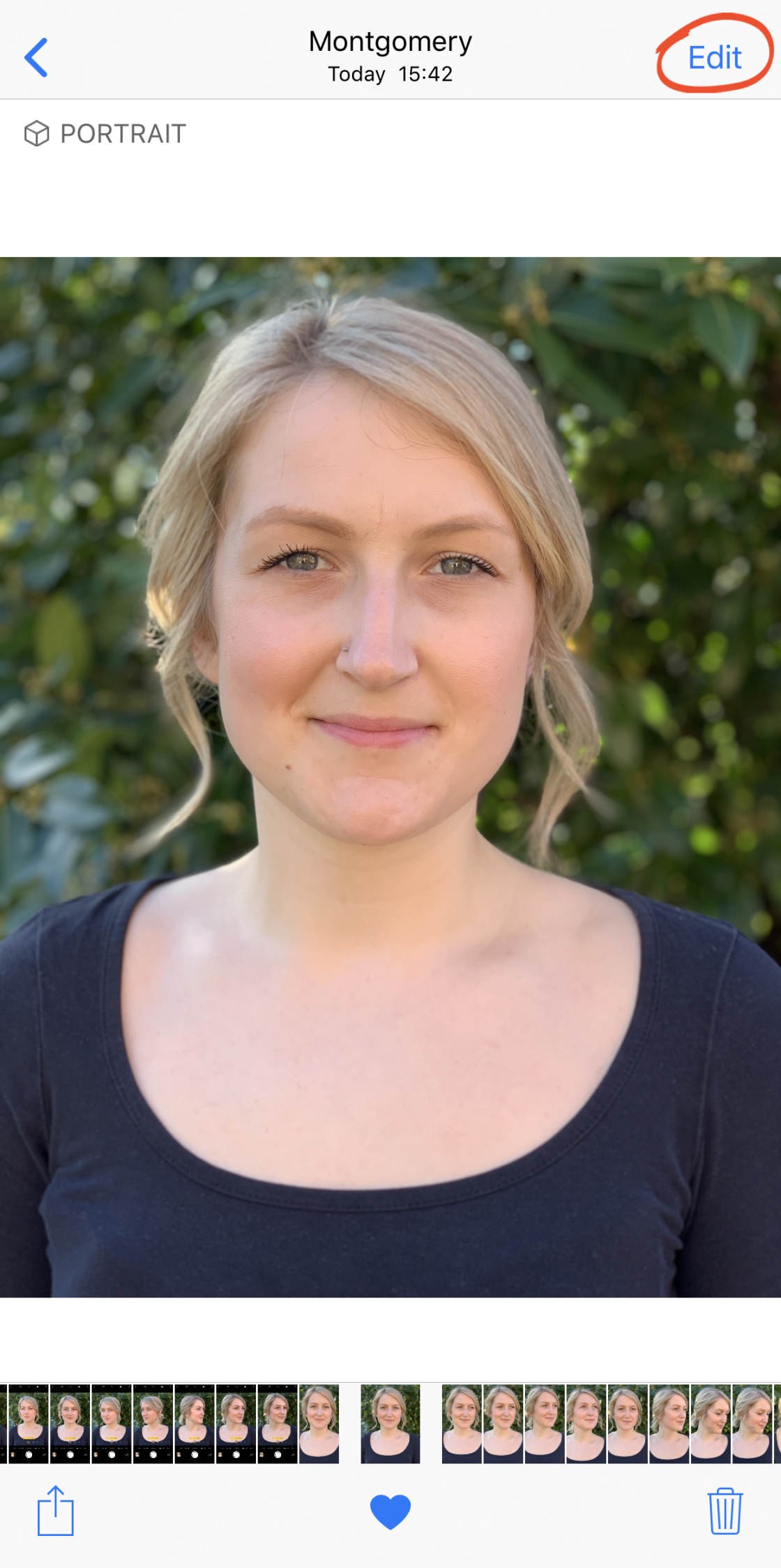
Then use the Depth slider to adjust the blur strength. A lower f/number results in a blurrier background, while a higher f/number shows more detail.
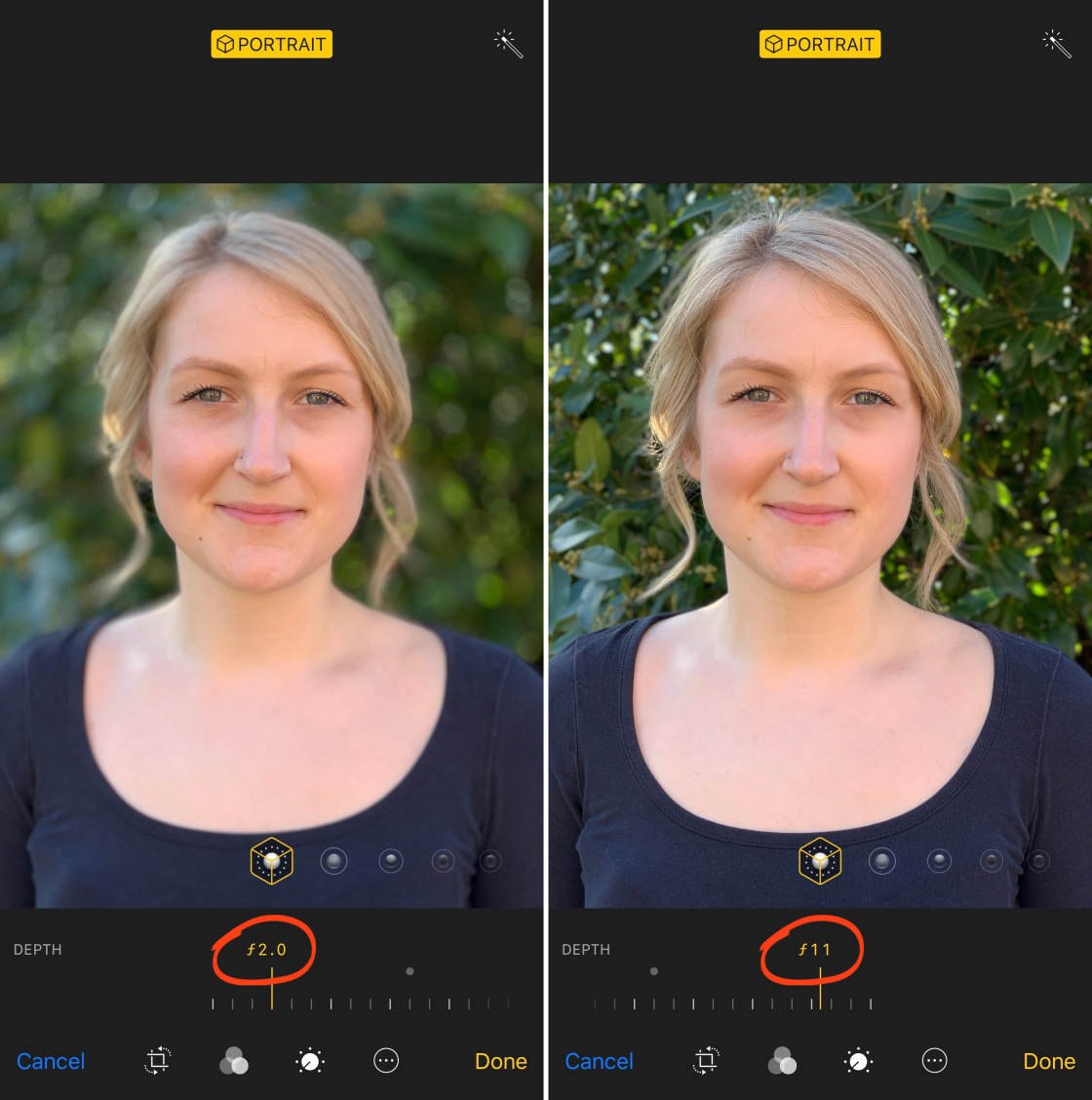
Portrait mode is an incredible iPhone camera setting. But it’s not the only way to blur the background in your photos.
Read on to discover a simple way to create beautiful blurry backgrounds without using Portrait mode…
8. Get Closer To Your Subject For Incredible Background Blur
Do you want to know how to blur background on iPhone without using Portrait mode?
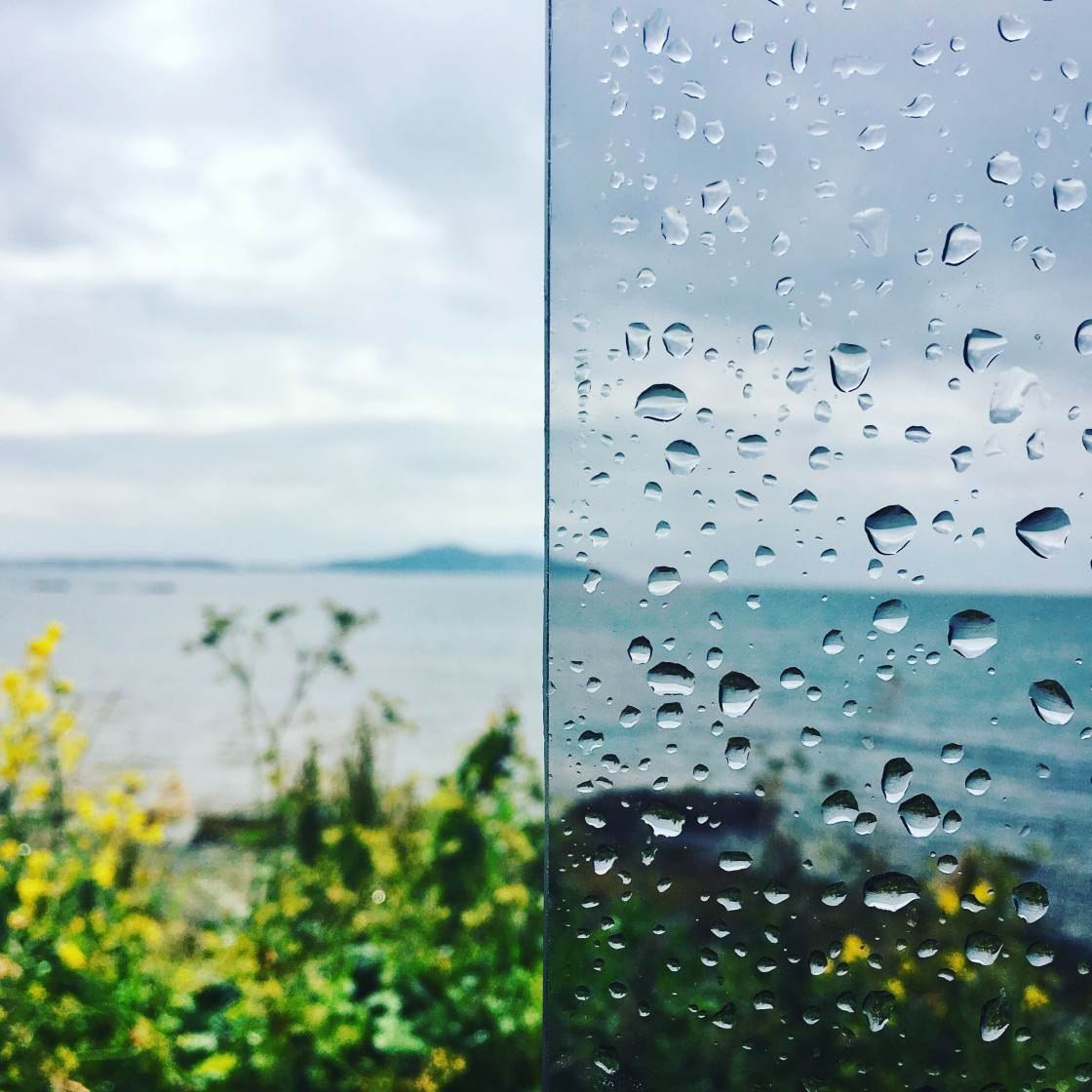
Here’s the simple answer:
Get closer to your subject!
This is one of the best focus tips for creating professional photos with beautiful blurry backgrounds. It works with all iPhone models – and indeed all cameras.
All you need to remember is this:
The closer you get to your subject, the blurrier the background will become.

Of course, you have to ensure you don’t get too close because the camera won’t focus at very close distances.
But you can certainly get within a few inches of your subject.
Just make sure you tap to set focus where you want it.
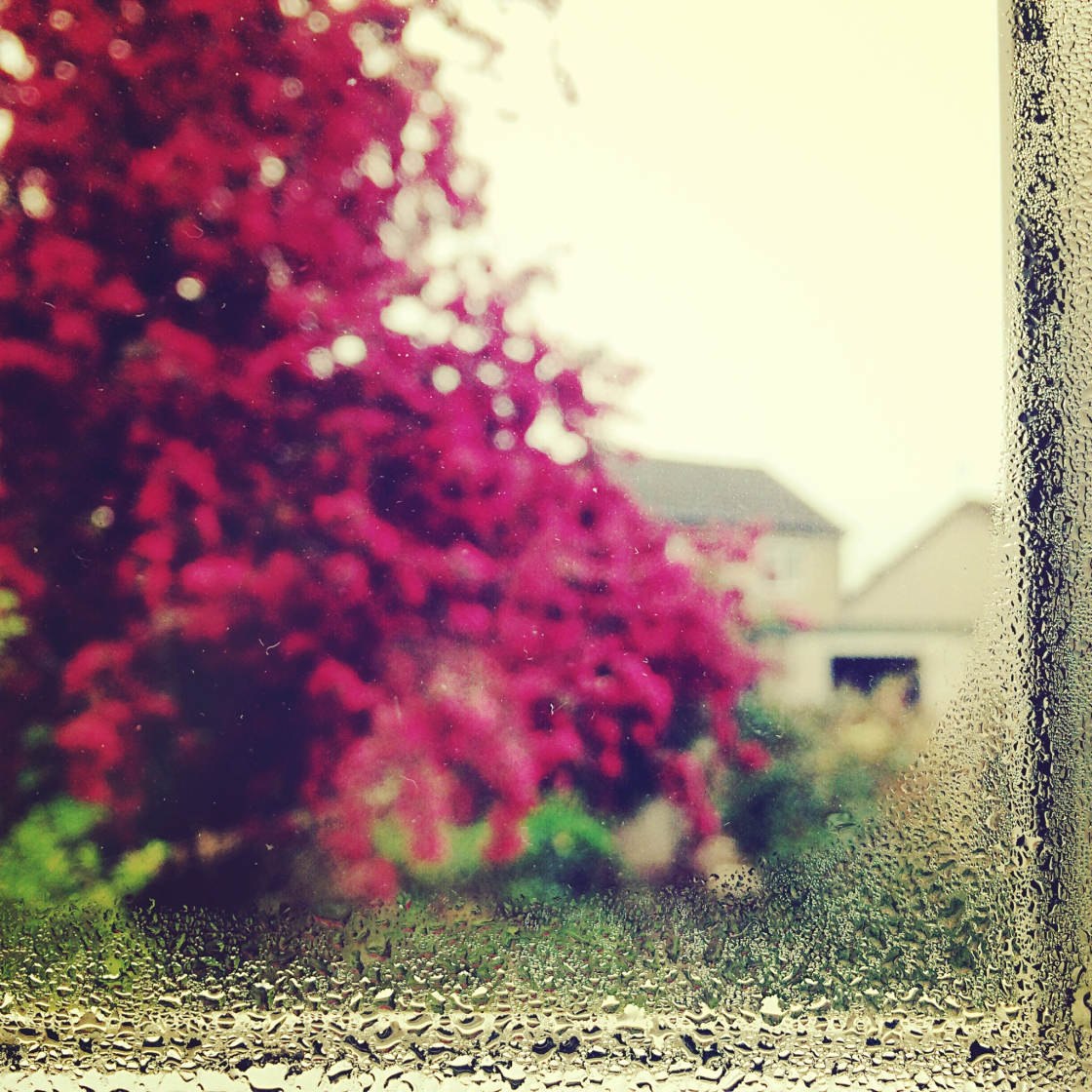
There’s one other thing to consider:
The distance between the subject and the background also affects how blurred the background will appear.
The further away the background is from your subject, the more out of focus the background will be.

So, for the blurriest backgrounds, here’s what you need to do:
Get close to the subject…
and ensure the background is far away from your subject.
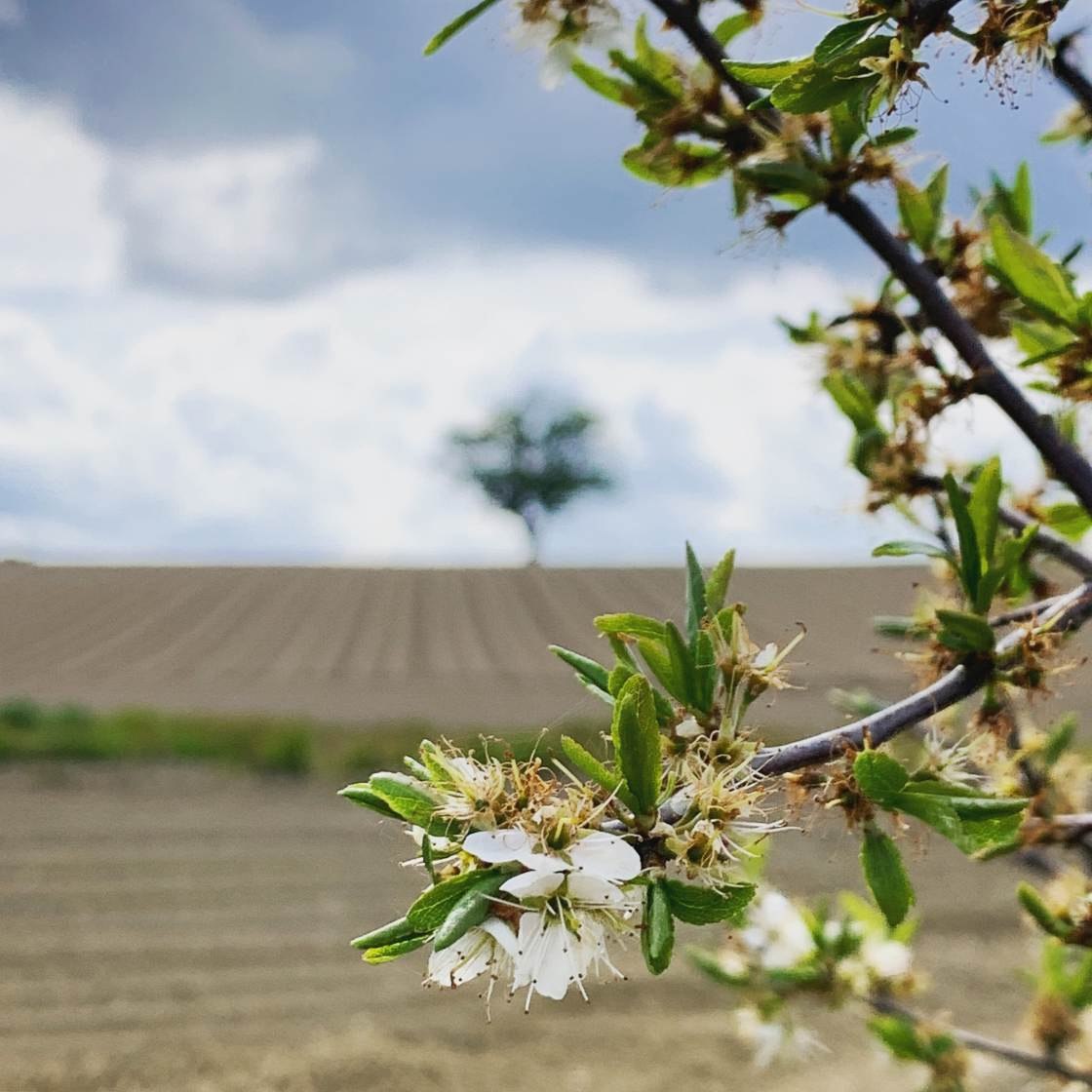
With these focus tips, you can shoot stunning photos with sharp foreground subjects and beautiful blurry backgrounds.
9. How To Get Everything In Sharp Focus
Creating a shallow depth of field with a blurred background isn’t always what you want.
Sometimes you’ll want a large depth of field where everything is in sharp focus from foreground to background.

For example, in landscape photography, you’d usually want everything to be clear and sharp.
So, how do you achieve a large depth of field in your photos?
You simply need to ensure there’s nothing too close to the camera.

But what about setting focus? If everything is in focus, do you need to set a focus point?
Due to the large depth of field, it’s not so critical to set an accurate focus point in these kinds of photos.
However, some parts of the image are likely to be slightly more in focus than others.

So it’s still a good idea to tap on the part of the scene that you’d like perfectly sharp.
In the photo below, I tapped to focus on the woman. If the sand in the foreground and the rocks in the distance are slightly out of focus, it won’t matter.

But if the woman is slightly out of focus, it would just look like a bad photo that wasn’t focused properly.
So it’s best to tap to focus… even when you’re taking photos with a large depth of field.
10. How To Take Sharp Photos In Low Light
Do your low light and night photos often turn out blurred?
This is a very common problem.
It happens because the camera uses a slower shutter speed in order to capture enough light.
And if you move the camera during this long exposure time, that movement will be captured as motion blur.

So how do you take sharply focused iPhone photos in low light?
First, you need to eliminate camera movement. The best option is to use a tripod to keep the camera perfectly steady.
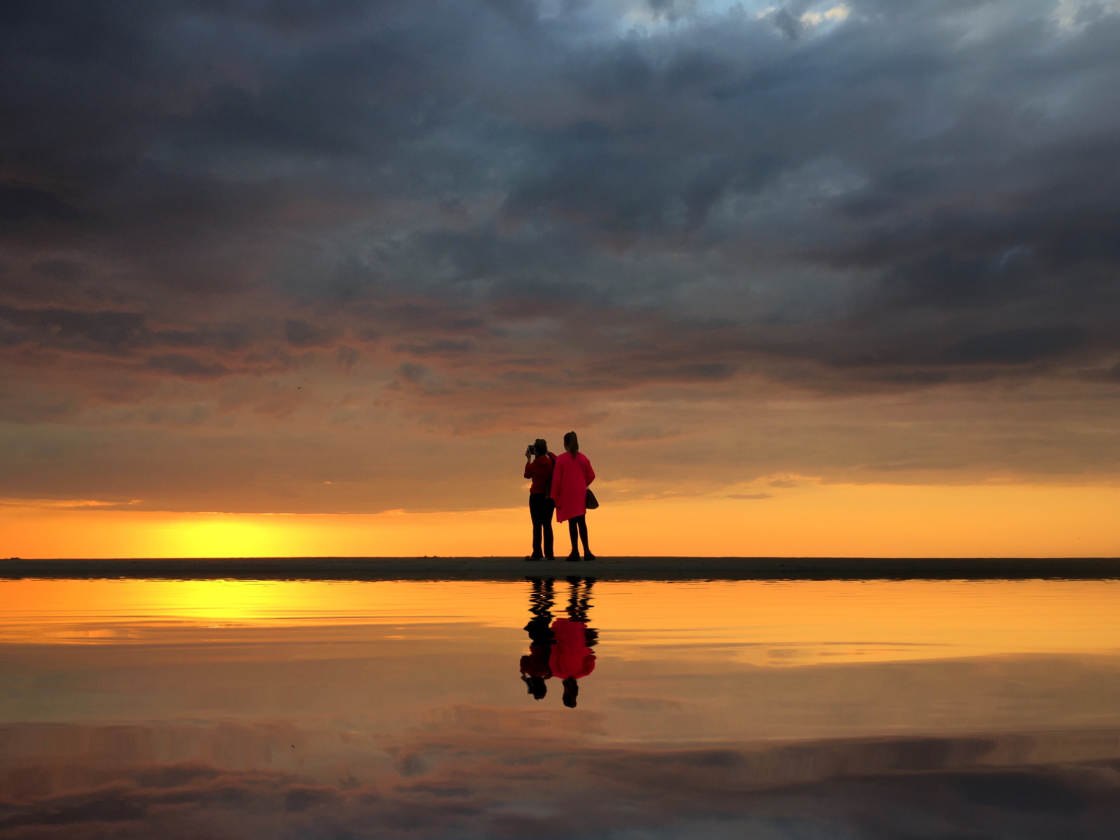
If you don’t have a tripod, try to find a solid surface to rest your iPhone on. You could use a wall, a fence, a rock, or anything else that will keep your phone steady.
If you need to hand-hold your iPhone, try to find something to lean against. A tree, a wall, or a lamppost will help keep your body steady as you take your shot.

You should also avoid holding your arms out in front of you. Instead, bring your elbows into your chest for a steadier grip.
Next, you need to think about light.
The camera will use a faster shutter speed when there’s more light, reducing the chances of blur in your image.
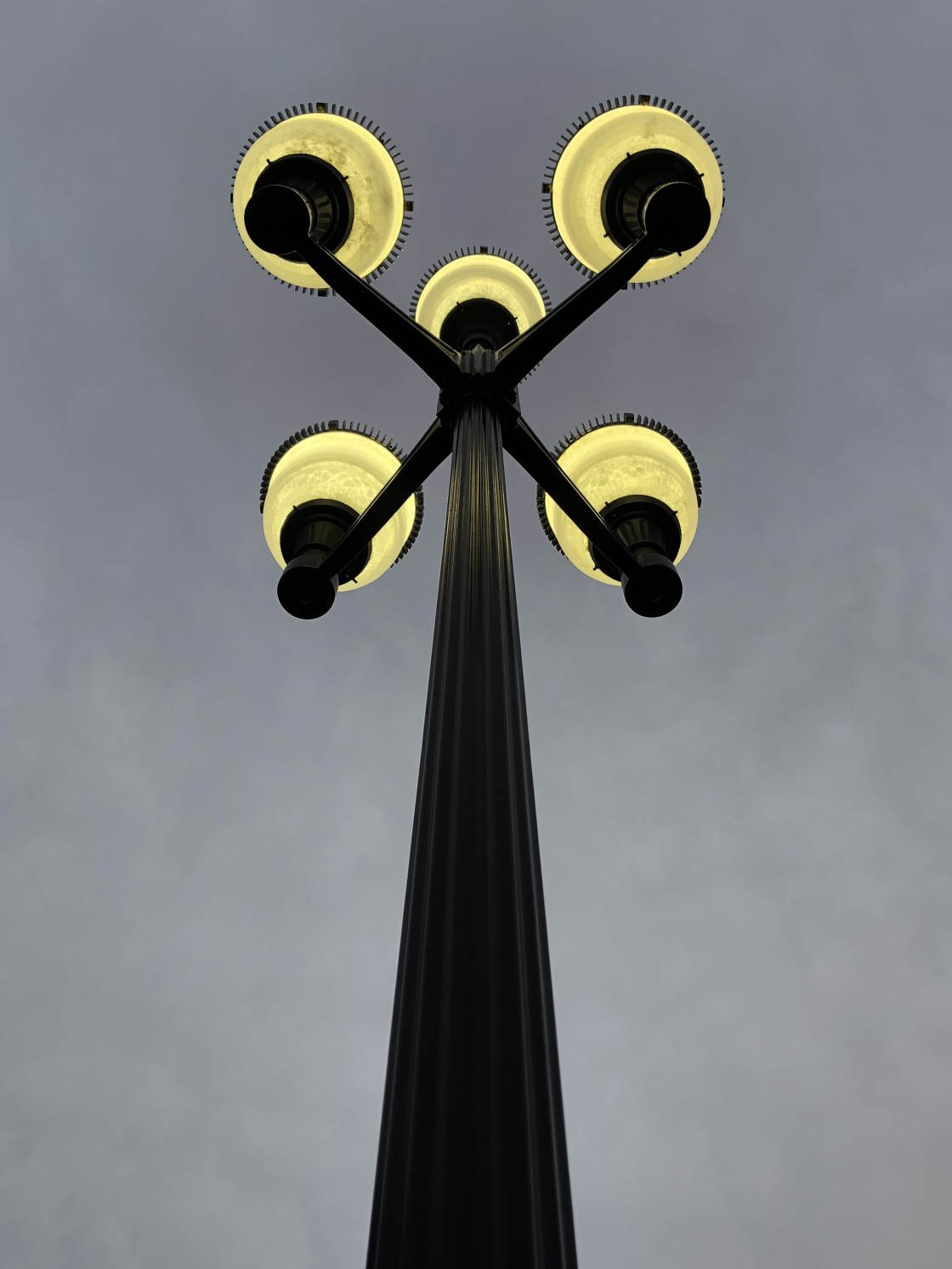
If you’re indoors, can you turn on some more lights? If you’re outdoors, can you find some street lighting or window lighting to throw some light on the scene.
You could even use a small hand-held LED light to illuminate your subject. This can work particularly well for night portrait photography.

To recap:
For sharply focused low light photos, you need to keep your iPhone steady. And you need to ensure there’s as much light as possible.
Try these tricks and your night photos will definitely become sharper!
The post 10 Focus Tips For Perfectly Sharp iPhone Photos appeared first on iPhone Photography School.
from iPhone Photography School http://bit.ly/2t7Jx3j
via
IFTTT